
Dime Dime Baby AI / Dance studio
Bby Wow Dance AI Generator
Turn your photos into a video with Bby Wow Dance AI. Make a nine-second Party Bite entrance or join a friend for a seven-second Duo Dance.
Make your Dime Dime video
Add photos — one person each
One adult · clear face · no sunglasses
One adult · clear face · no sunglasses
Clear, well-lit photos work best. One adult per photo — the photos can be taken separately.
Pick your template
Generation cost
Pick a scene, add photos, and generate. Music included.
Your video includes
The scene, moves and music are already set. Upload your photos and let the template take it from there.
10 credits per video, including template music
You only start a paid generation after confirming the cost.
Use photos of adults who agreed to appear. Terms of Service
No subscription · Private uploads · Confirmed failed jobs restore credits
View the real generated example
Your photo stays out of the public gallery.
Photo tips & how it worksYour dance video guide
Choose your Bby Wow Dance AI scene
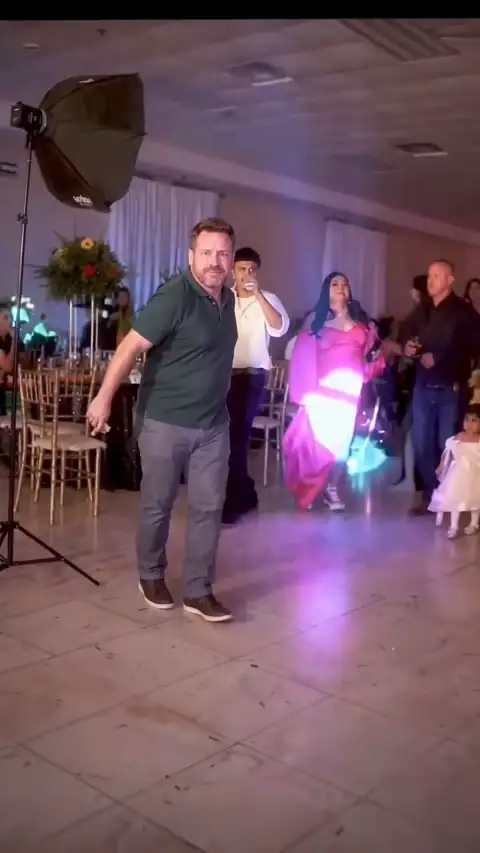
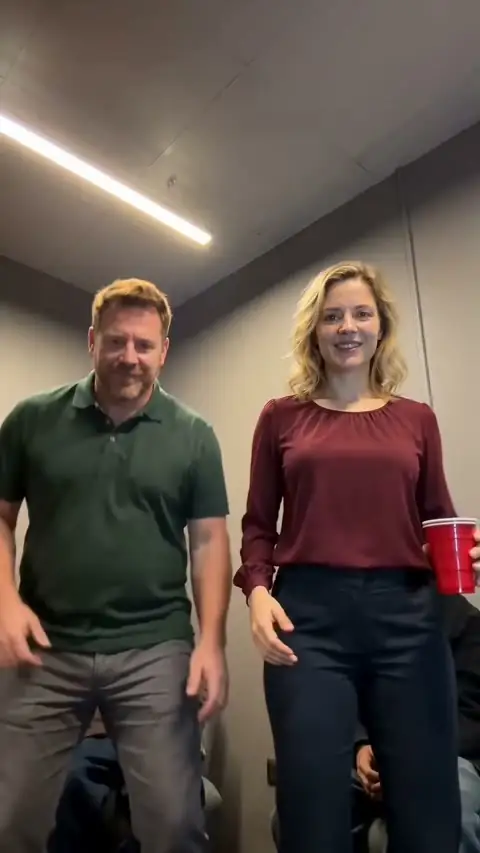
In the Party Bite scene, the joke lands when a person who has just danced into a crowd stops and looks straight at the camera. In the Duo Dance, the fun comes from seeing two familiar faces move together. Play both examples with sound. They are actual generated outputs made with synthetic adult portraits, so you can compare the pacing as well as the framing.
Each scene has a set length and choreography. Your photo supplies the lead performer. The template supplies the soundtrack and camera timing. Choose the nine-second entrance if you like a little suspense, or the seven-second dance if you want the pair on screen together from the start.
One portrait for your party entrance
Imagine a friend who always makes an entrance. The Party Bite template gives that person a short walk into the party, a bite of bread, a look and a turn away. One clear photo supplies the lead performer. The other guests help set the scene, so there is no need to gather everyone for a group picture. Choose a waist-up portrait with the shoulders visible.
For a birthday message, pick a photo in an outfit the recipient knows well. A familiar jacket can make the first second of your clip feel personal before the performer reaches the camera. If you are choosing between two pictures, look for clear eyes and even light before worrying about the background. The template builds the party around the subject.
Pair two friends in a synchronized dance
You and your dance partner can be in different cities. In two-photo mode, upload one portrait of each person. The first photo supplies the dancer on the left at the opening. The second supplies the dancer on the right. Check the previews in that order before generating. The template determines how the dancers move.
For a double act starring only you, switch the Duo Dance template to one-photo mode. Both dancers take their appearance from that picture, while each keeps their own steps. This pairing works especially well when a recognizable outfit makes the resemblance obvious in the opening frame. Play the duo example twice, watching a different dancer each time.
Pick a portrait that reads well in motion
Shrink your portrait to the size of a phone thumbnail. Can you still see the eyes, the outline of the face and where the shoulders end? Window light often works well. Face the window and keep the camera near eye level. Sunglasses, a hand over the mouth or a bright light behind the head can hide details needed for the close look.
Use one adult per picture, even when making a two-person video. Two people standing together in a single image leave the dancer assignments unclear. For separate portraits, similar lighting can help the pair look more at home in the same scene. Check the photo previews in the generator after uploading. If one is blurry, replace that picture before spending credits.
From photo preview to finished video
First, decide whether your clip needs one lead or two dancers. Choose the matching template and place your photos in the labeled slots. Use the photo preview to catch a swapped portrait before you spend credits. Review the duration and the credit quote beside the generation button. Watching an example is free. Making your own clip uses the displayed credits.
When you are ready, sign in and submit once. The generator shows progress for the task you started. If you leave the page, your account history is the place to look for that task. Open the result, play it through and download the finished video. If you want a second version, change one input at a time so you can tell what made a difference.
Frame your clip for a phone
In these scenes, framing matters to the punchline. A Party Bite clip needs room for the walk toward the lens as well as the pause after the bite. In a Bby Wow Dance AI Duo Dance, both dancers need space from side to side. The templates produce a 720p video in a 9:16 frame, so preview it upright before deciding whether to crop anything for another format.
Listen once with the sound on. Each scene includes the template music, and a second track added at full volume can bury the beat that ties the movement together. If you add a birthday caption in your video editor, try it above the dancers’ heads and check the final frame too. Keep an unedited copy of your original download so you can make a different edit later.
Questions about Bby Wow Dance AI
Do I need to film myself dancing?
A still photo is enough to make your video. The steps come from the chosen template, so you can use a portrait taken long before you heard the track. For two different dancers, use two individual portraits with permission from both people.
Can I change the music?
The two templates here use their own movement, timing and music. To change the mood, try a different portrait or choose the other scene. A friend in a dinner jacket doing the short synchronized dance tells a different story from the same friend walking into a party. You can hear each arrangement in its playable example.
What if my task is still processing?
Open its progress view or find the same task in your video history. Processing and saving the finished file are separate stages. Check the existing task before starting another one, especially if you closed a tab or lost your connection. When your video is ready, use the download control on that result to save your private copy.
How do I make another version?
Keep the first download, then start a new video and change the photo or template. A useful comparison is the same portrait in both scenes. The party entrance brings the face close to camera, while the duo keeps the two bodies in view. Check the quote for the new task before generating. Each version has its own result.
Watch the opening and the ending before sharing
A short clip can change character when it plays on a loop. Watch the entrance once from the first frame, then let it repeat. Notice whether the turn at the end makes the next walk-in feel like a return to the same party. For a message to one friend, that little repeat can be part of the joke. For a group chat, a brief caption explaining the occasion can help people understand why you picked that person.
With Bby Wow Dance AI, the source photo is the detail you can experiment with most directly. Try comparing a relaxed everyday portrait with a picture in a recognizable party outfit. Save each download with a name that reminds you which photo you used. When choosing what to send, check the face, the complete movement and the sound together. A still frame alone cannot show how the joke lands across the full clip.